
Hear any project without opening your DAW
Opening a session to remind yourself what it sounds like costs two or three minutes and half your attention: splash screen, plugins loading, samples relinking, and then it turns out to be the wrong one. Sessions puts a waveform and a play button on the row itself, so you can audition your old sessions the way you would flick through a record crate.
The bounce folder you keep is a workaround
Almost every producer has one: a folder of MP3s or WAVs kept purely so there is some way to listen to old work without launching a project. You maintain it by hand, it goes stale the moment you re-render something, and the naming drifts until you cannot tell which bounce belongs to which session.
The reason that folder exists is the real problem. Opening a project is expensive. A big set can take minutes to load, it may prompt about missing samples, it hogs your CPU, and it pulls you into editing mode when all you wanted was to remember whether the idea was any good. So a drive with three hundred unfinished ideas on it becomes impossible to judge: not because the music is bad, but because auditioning it is too slow to be worth doing. Ideas do not get abandoned on purpose. They get abandoned because nobody ever listens back.
Step 1
Your bounces get matched to their projects for you
Point Sessions at your exports folder once. On every scan it compares the names of the audio files it finds there against your project names, normalized (dates, version suffixes, dashes, underscores and case are all leveled out) and scored for the best fit. Each project quietly gets its audio attached. You file nothing, tag nothing, and drag nothing. If your projects and your exports already share a rough naming convention, which they usually do because you named the bounce after the song, the matching is mostly invisible.
When the guess is wrong, or when the good render lives somewhere else entirely, pick the file yourself. A manual audio choice survives every rescan, so you correct a mismatch once and it stays corrected.
Step 2
A waveform and a preview window on the row Pro
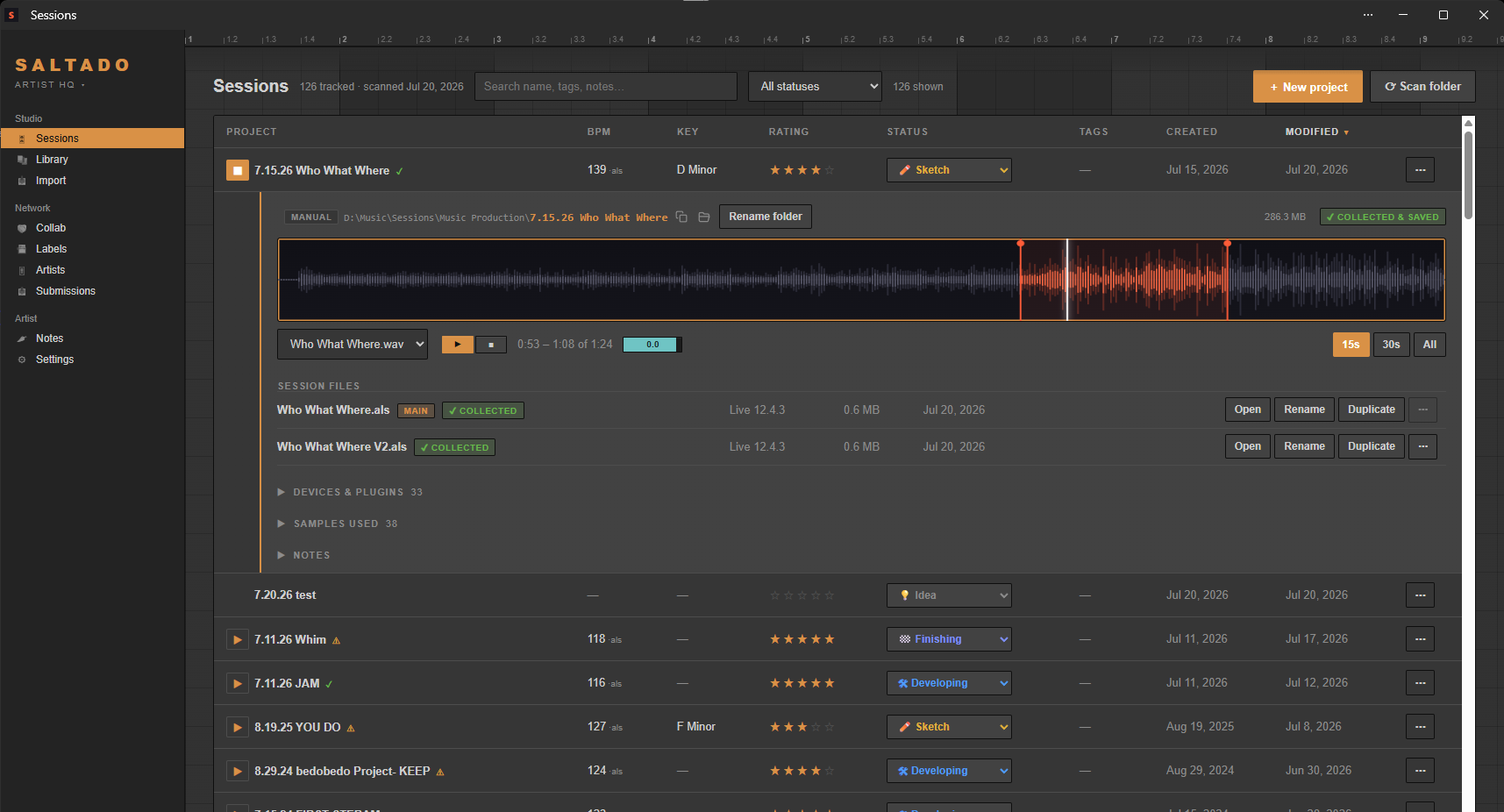
Expand a project and you get the track drawn as a waveform, with a preview window you can drag anywhere along it. Play and stop, plus window lengths of 15s, 30s or All, where All means the whole file. Fifteen seconds is the triage setting: it is long enough to know what a track is and short enough that you can get through fifty of them. Changing the length while something is playing retargets the window without cutting the audio off.
There is a per-track volume box that works in decibels like the one in your DAW, from silence up to +6 dB, and it remembers each track's setting. Playback is also level-matched: each preview is peak-normalized to about -1 dBFS, so a quiet rough bounce from 2022 and a finished master sit at comparable volume and you are not reaching for the knob between every track. That is what makes back-to-back listening actually tolerable.
Step 3
The preview starts where you left the loop brace
Here is the detail that makes catalog listening work rather than merely exist. If you have never set a preview window on a project, Sessions does not start at bar 1. It reads the arrangement loop brace out of your Ableton set and starts there instead, because the brace is where you were actually working: the drop, the chorus, the eight bars you had on repeat for an hour. Bar 1 of an unfinished track is usually a lonely kick and a riser. The loop brace is the part that tells you whether the idea is worth reopening.
It is computed live rather than written into the database, so if you move the brace in Ableton the default preview follows it. And the moment you drag a window yourself, your choice wins and stays won.
What this changes about how you work
Once listening is cheap, a few things become possible that were not before:
- Triage a whole catalog in one sitting. Go down the list, fifteen seconds each, and rate or set a status as you go. A few hundred projects is an afternoon, not a month.
- Find the unfinished idea worth finishing. Sort by untouched-longest, listen through, and open the two that made you sit up. That is a far better way to pick your next session than opening whatever you happen to remember.
- Shortlist for a label submission. Play the candidates back to back at matched level, decide which three are genuinely ready, then log the sends against the labels you have in the app.
- Check a rough mix away from the desk. The bounce plays from the app, no session loading, no plugins needed.
The same player handles the individual samples a session uses, so when a project says it references a loop you no longer recognize, you can hear it in place rather than hunting through folders for it. That is also part of Pro.
Being straight about what it plays
Sessions plays your exported audio files. It is not a DAW and it has no audio
engine of its own: it cannot render a project, it cannot play your plugins, and it cannot preview a
session that has never been bounced. If a project has no export anywhere on disk, there is nothing
to hear until you make one. That limitation is worth knowing up front, and it is also why bounce
previews work identically across all five supported DAWs, Ableton Live, FL Studio,
Logic, REAPER and Studio One, since playing a WAV does not care what made it. The loop-brace
default is the one Ableton-specific piece, because it comes from reading inside the .als.
Everything happens on your machine. There is no account and no cloud upload, and the scan that finds your projects and bounces is read-only.
What is free and what is Pro
- Free: the scan, the full library view for unlimited projects, BPM and key, length, search, sort, ratings and statuses. Finding your work costs nothing.
- Pro ($44, one time): bounce and sample playback, the waveform and preview window, and the rest of the studio library tools. One payment, yours forever, never a subscription.
If your library is not scanned yet, start with finding every old project on your drives, or clean up the pile first. The features overview covers the rest, and pricing is here.