
The best way to back up Ableton projects
Back up whole project folders rather than .als files, plus your
Ableton User Library and your recordings, and put the copy on a drive you do not work from, with
one copy that lives somewhere else entirely. Everything else (Live itself, your plugins, factory
Packs) can be downloaded again, so a written list of what to reinstall is worth more than a copy
of it. The two questions hiding inside "how do I back up my Ableton projects" are which files
cannot be replaced and where the copy lives, and only the first one is about Ableton.
In practice
Six lines, then the reasons
- Back up project folders, never
.alsfiles. Run File → Collect All and Save on anything you care about first, so the audio is actually inside the folder you are copying. - Back up your Ableton User Library. That is where your presets, defaults, grooves, Clips and templates live, and nothing on earth can rebuild it.
- Back up your recordings and your bounces. A vocal take exists in exactly one place.
- Do not back up plugins, Live itself, or Packs. Keep a written list of what to reinstall instead. It is smaller and it is the thing you will actually need.
- Copy it to a different drive. Ableton's own recommendation is a dedicated backup drive, done manually, on top of any cloud sync or Time Machine you already run.
- Get one copy out of the building. A drive next to the computer survives a drive failure and nothing else.
Everything below is the reasoning, plus the specific ways this quietly fails for music in particular.
Part 1
What is actually irreplaceable
A backup is not a copy of your computer. It is a copy of the things a fresh install and your accounts cannot give back. For a producer that list is short, and it is almost entirely your own work:
- Project folders, complete with their audio. The folder is the unit. Not the
.als, which is covered in a moment. - Recordings. This is the most fragile category in the studio and it has a trap in it: Ableton documents that before a project is saved, audio recordings sit in a temporary folder, and only get copied into the project folder when you save the Set. So the take you just played, in a session you have not saved yet, is not in your project folder at all. Ableton's own crash-recovery article says plainly that recordings not yet saved may or may not be recoverable.
- Your Ableton User Library. Custom presets, device defaults, Clips, Grooves,
Samples you saved with presets, and since Live 11 your Template Sets. Ableton says the User
Library is kept separate from the Core Library precisely so it can be backed up or moved
between installs. By default it is at
\Users\[you]\Documents\Ableton\User Libraryon Windows and/Users/[you]/Music/Ableton/User Libraryon Mac, unless you pointed Live somewhere else in Preferences. - Your bounces, masters and stems. You can re-render them only if the project still opens with every plugin it needs, which is a bigger assumption than it sounds.
- Anything you typed. Track lists, notes, ratings, the version that is actually
the good one, label contacts, who you have already sent what to. None of that is in a
.als, and losing it is losing a year of decisions rather than a year of files.
One clarification, because it trips people: backing up the User Library is not backing up your music. Ableton states outright that the User Library is not intended for saving your Live Projects or Live Sets. They are two separate copy jobs.
Part 2
What you do not need to copy, and what to keep instead
Half of the disk space in a naive "back up everything" is spent on things that are already backed up by somebody else. Skipping them is not laziness, it is what makes a backup small enough that you will actually run it twice.
Live itself
Reinstalling Live replaces the application and the Core Library, the stock content that ships with your edition. Ableton is explicit that your preferences, projects, User Library, installed Packs, third-party plugins and your license are stored separately and are not touched. So Live is a download, not a restore. The one exception is worth knowing: never save your own files inside the Live application folder, because a reinstall genuinely will delete them.
Packs
Every Live Pack has a serial attached to your ableton.com account at purchase, and your account
page lists both the Packs included with your license and any you bought separately. Ableton even
lists the .alp Pack installer as safe to delete once the Pack has been opened in Live.
That is the definition of replaceable.
Plugins
This is where people waste the most space for the least protection. A copied .vst3 or
.dll is not a working plugin: it needs its installer, its license activation and often
gigabytes of separate content. Ableton says the same thing from its own angle, that plugins cannot
be copied into a project folder and have to be installed separately on each computer. Copying your
plugins folder gives you files that do nothing on a new machine.
Downloaded sample packs
Anything that lives behind a login and a download button is a re-download, not a backup job. It is still worth listing what you own so you know what to fetch, but it does not need to ride on the drive with your songs.
What to keep instead: a list
When a machine dies, what you need at nine in the morning is not a folder full of installer files. It is the answer to what was on it: which plugins, from which vendors, which Packs, which version of Live. That list is a text file. It weighs nothing, it is the thing nobody has when they need it, and it turns a rebuild from an archaeology project into an afternoon of downloads.
Part 3
Why a copied .als is not a backup
Ableton's wording is the clearest statement of the whole problem: when you save a Set with Save or
Save As, Live only stores references to the files used in the Set. A
.als is a few hundred kilobytes of pointers to samples that live wherever they happen
to live, in your Splice folder, on an external drive, in Downloads. Copy the .als and
you have copied the pointers.
There is a version of this that catches people mid-backup, and Ableton documents it directly:
saving a Set onto an external drive does not bring the referenced media with it.
File → Collect All and Save is the command that does, copying the audio and
video the set uses into the project's own Samples folder. Run it before you copy
anything you intend to still be able to open in five years.
Two catches worth knowing before you trust it. It cannot collect a file Live has already lost, so relink first if the set is reporting missing media (there is a walkthrough on finding missing samples in Ableton). And when it offers you per-location toggles, the factory Packs one matters: Ableton tells you to tick it when the project is going to a machine without the same Packs, and a backup you restore onto a rebuilt computer is exactly that machine. The full walkthrough, including what the command does and where it fails quietly, is on how to share an Ableton project with its samples.
Part 4
What Live's own Backup folder protects (and what it does not)
Live does keep versions of your Sets, and a lot of producers assume that is their backup. It is not, but it is genuinely useful and worth understanding in one paragraph.
Live automatically creates a Backup folder inside a Project after a Set is saved, from
the second save onward. It holds the ten most recently saved versions of that Set, each stamped with
a timestamp in brackets, and once there are more than ten the oldest goes to the trash. Ableton
describes the purpose accurately: it is for when you have overwritten a project file or want a
previous version you did not explicitly save. The full detail is in
Ableton's own Backup Sets article,
and there is no reason for us to restate it.
Here is the limit. That folder lives inside the project folder. If the drive fails, it fails with it. If you delete the project, you delete it. And it holds Sets, not samples, so restoring one still depends on the audio being where it was. What Live gives you is undo across saves. What it does not give you is a second copy in a second place, which is the entire job of a backup.
Crash recovery is a different mechanism again, driven by an undo file in Live's preferences folder, and Ableton notes it has to be completed with the same Live version that crashed. Also useful, also not a backup.
The fix for that limit is not to abandon the Backup folder, it is to get it off the
drive. Those ten saved versions are a real record of the last week of a song, and nothing can
regenerate them, so Sessions treats a DAW's own backup folder as part of the project rather than as
clutter: it travels with the On the go copy to a USB drive, and it will travel with
Sessions Cloud. Same folder, now in a second place, which is the only thing it was ever missing. Pro
Tools' Session File Backups get the same treatment.
Part 5
Three copies, two places, no lecture
The standard shorthand is the 3-2-1 rule: three copies of anything you care about, on two different devices, with one of them somewhere else. It came out of photography (Peter Krogh's The DAM Book) and got adopted by everyone from government security guidance to backup vendors, which is usually a sign that something is both true and boring.
Translated into a bedroom studio it is much less grand than it sounds:
- Copy one is the drive you work on.
- Copy two is an external drive you update when you finish something. It covers the failure that actually happens to people: a drive dies, or you delete the wrong folder.
- Copy three lives where your house's problems cannot reach it. A drive at a friend's place, at the studio, at your parents'. Or an online backup service. It covers fire, flood and theft, which are rarer and total.
Copy three is the one almost nobody has, because carrying a drive to another building is a chore you have to keep remembering. That is the gap Sessions Cloud is being built to close: an encrypted off-machine backup of your whole studio, folders you choose, byte for byte, running by itself rather than when you remember. It keeps 30 days of history so yesterday's version of a set is recoverable and not just the current one. It is a separate subscription, $9 a month or $90 a year, and buying Sessions Pro includes your first month of it. Nothing on the rest of this page waits for it, and the free local backup run further down works right now.
Most producers reading this have one copy. Going from one to two is the jump that matters and it takes an afternoon. Going from two to three is insurance against a category of event you will probably never have. Do not let the third copy stop you doing the second one this week.
Part 6
External drives: the caveats that are actually true
Ableton's storage guidance is worth reading in full, and three things in it change how you buy and use a backup drive.
- It does not need to be fast. Ableton says directly that drive speed and specifications are not as critical for a backup-only drive as for one holding files in active use. Buy capacity, not throughput. The cheap large drive is the right drive here.
- Format it for the machine that will restore from it. NTFS on Windows, APFS or Mac OS Extended on modern macOS. If it genuinely has to be readable by both, exFAT is the shared option, and Ableton lists it as such.
- On Windows, drive letters are not stable, and Live cares. This is the real version of the "absolute paths" warning. Ableton documents that when you use several external drives, connecting them in a different order can change the disk designators, so a D: drive becomes E:, and Live can no longer find files stored on them. If your samples live on an external drive, the order you plug things in is a real dependency of your projects. Ableton also says to connect the drive before launching Live, for the same reason.
One thing that is our opinion rather than Ableton's documentation, flagged as such: a backup drive that is only plugged in while it is copying cannot be taken out by whatever takes out the computer, whether that is a bad power supply, a mistaken delete or something malicious. Unplugging it costs nothing and it is the cheapest upgrade available to a one-drive backup.
Sessions has a free feature for the drive half of this, called On the go. Tick which of your studio folders should travel and it copies them to a removable drive, into one clearly named folder rather than scattered across the disk. The part that makes it a habit rather than an afternoon is that every trip after the first copies only what changed, so topping the drive up before you unplug it takes seconds. It writes only to drives it can confirm are removable, and it refuses your system drive outright, which matters for a tool whose whole job is bulk copying. It can also put the Windows and Mac installers on the drive, so the machine you restore onto does not need a working internet connection first. That is the "copy two" of the rule above, made repeatable.
Part 7
Cloud folders: what is true, and what is folklore
Ableton has a whole document on this and its opening line is not subtle: cloud storage is generally not optimized to meet the demands of music production. That is not the same as "never use it", and the useful thing is that their list of problems is specific rather than vibes. The ones that matter for a backup:
- Placeholder files are the big one. OneDrive's Files on Demand and iCloud both offer to keep a reference on your computer while the real file sits in the cloud. Ableton says this option is not recommended and can prevent Live from finding necessary files. If your projects folder is syncing, set it to keep files on the device. A folder full of placeholders looks like a backup in Explorer and restores nothing on a plane.
- iCloud can delete your files on purpose. Ableton documents that iCloud Drive's Optimized Storage removes older files from Desktop and Documents when storage runs low, and that media saved in either folder may be automatically deleted. Plenty of producers keep a projects folder in Documents.
- Never sync applications or plugins. Ableton's instruction is to use cloud folders for library content and project folders only.
- Sync while Live is open causes dropouts. Ableton recommends turning cloud sync off before launching Live, because background syncs interfere at what feel like random moments.
- A filename starting with a space is not backed up at all. This is a genuine note in Ableton's article and it is exactly the kind of thing you discover at the worst time.
- One machine at a time. When a single Live Project is synced across systems, Ableton says to only ever open it from one of them at a time.
And the structural point, which is not an Ableton issue at all: sync is not backup. A sync service's job is to make the other end match, so a deletion propagates like everything else. What saves you is the provider's retention window, and it is shorter than people assume. Dropbox keeps deleted files for 30 days on standard plans. Google Drive empties the trash permanently after 30 days. Notice a folder is gone in month two and both copies are gone with it.
The folklore worth dropping is the blanket claim that cloud storage corrupts your projects. What is documented is narrower and more useful: a sync client interacting with files Live has open, or externalizing files Live expects to be local. Ableton's own troubleshooting index for cloud storage lists files reappearing after deletion, files duplicating themselves and corrupted Live Sets as symptoms to check against, which tells you the failure is real and tells you where it comes from.
Part 8
Do this today
Not a system. A backup, which is infinitely more than nothing, and you can automate it later.
- Plug in the largest external drive you own. If you do not own one, that is the purchase, and it does not need to be fast.
- Open the five projects you would genuinely be upset to lose and run Collect All and Save on each.
- Copy your whole projects folder, your Ableton User Library and your bounces folder onto the drive. If you have Sessions installed, On the go does this step for you: tick the folders once, and every later top-up copies only what changed. It is free.
- Write down what is installed on this machine: plugins, Packs, which version and edition of Live. Save that text file next to the copy.
- Unplug the drive and put it somewhere that is not on top of the computer.
If step three made you realize you have no idea where all your projects actually are, that is the normal state of affairs after a few years, and it is a survey problem rather than a copying problem. Finding old Ableton projects and organizing them both cover it.
In the app
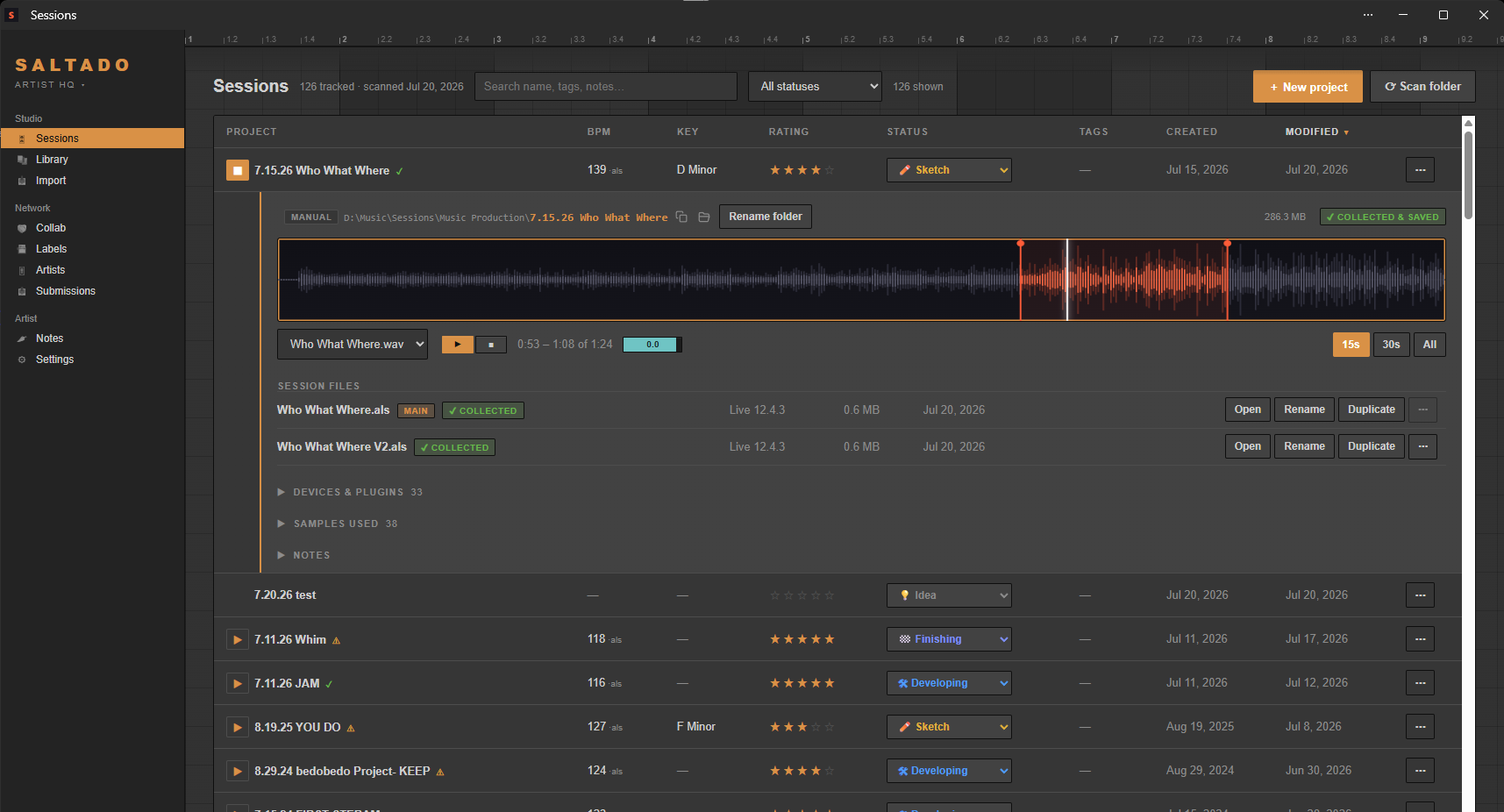
The free backup run in Saltado Sessions
Saltado Sessions has this built in, free, under
Settings → Backup & restore → Back up your work. It reads your library,
shows you exactly what it is about to copy and how big it is, and then copies only the irreplaceable
half to a folder you pick: your projects folder, your templates folder and your Ableton User Library,
plus the app's own database so your ratings, statuses, notes, label book and submission history
travel with the audio. Next to it, it writes a plain-language file called
YOUR STUDIO.md: every plugin it found grouped by vendor, your sample, rack, preset and
Max for Live counts, and a table of every project with its BPM, key, status and rating. Plugins are
deliberately not copied, because a copied plugin file is not a working plugin, so what you get
instead is the reinstall list, which is the thing a dead-drive rebuild actually needs. It refuses to
back up into a folder inside one of your source folders, it only ever reads the originals, and there
is no account and no upload. Your exports folder is not part of that run, so copy your bounces
across yourself.
The honest limit: it is a copy on your own drive. A fire or a theft takes both unless the drive lives somewhere else. Point it at a drive you keep in another building and it is a real backup. Point it at a second folder on the same disk and it is only protection against deleting the wrong thing, which is worth having, but it is not the same promise.
What is free and what is Pro
- Free: the drive scan and library for unlimited projects, the "Back up your work" run and its reinstall summary, On the go, the collect status on every project, the Compatibility Checker, Plugin Passport, BPM and key, search, sort, ratings, statuses and the label book.
- Pro ($34, one time): bounce playback, the full sample and plugin library, starting a new project from your own template, the drop-to-organize importer, the un-tangler, the duplicate-sample finder and demo-submission tracking. Never a subscription. Opening your DAW from the app is free.
Everything here is local. No account, nothing about your music leaves the machine, and reading your projects is read-only. Sessions Cloud is the one exception, by definition, since an off-machine copy has to go somewhere: it is encrypted, it is opt-in per folder, and it is a separate subscription.
Copy the half that matters, and know the rest by name. Sessions reads every project on your drive without opening Live, copies your projects, templates and User Library to a drive you choose, and writes down every plugin you would have to reinstall.