
How to share an Ableton project so it opens on their machine
Sending a Live Set is not one action, it is four: collect the audio, package the folder, get it across, and make sure the machine at the other end can actually load it. Miss the last one and they open a session with silent tracks and no idea what is supposed to be there. Here is the whole thing, start to finish.
In practice
Five steps, and then the detail
- In Live, run File → Collect All and Save. This copies the audio the set uses into the project folder so it travels with the project.
- Zip the whole project folder, not the
.alsfile on its own. - Send the zip with a transfer service or a cloud link. A real project is almost always too big to email.
- Tell them which version and edition of Live you saved it in. A set saved in a newer Live will not open in an older one.
- Tell them which third-party plugins it uses, because Collect All and Save does not copy plugins and never will. Anything they do not own, bounce to audio first.
Steps 1 to 3 are the ones every guide covers. Steps 4 and 5 are the ones that actually decide whether the session opens, and they are about the other person's computer, not yours. The rest of this page is those two in detail.
Step 1
What Collect All and Save actually copies
Ableton does not embed audio in a project. A .als is a small file full of pointers
to samples living wherever they happen to live on your disk: your Splice folder, an external
drive, your Downloads. Those pointers are meaningless on someone else's computer.
File → Collect All and Save fixes that by copying every external file the
current set references into the project folder itself. Audio and video files land in the
project's Samples folder, in a Collected subfolder, and Max for Live
devices are copied in as well. After it runs, the project folder is self-contained and can be
moved, backed up or handed over without the audio going missing.
Two things to know before you run it. It can copy a lot: Ableton's own manual warns that this "can cause a lot of copying, especially if your Live Set uses large multisample collections." And it collects for the current set only, so if your project folder holds five versions of the song, running it on one of them does not collect the other four.
The trap
Where Collect All and Save fails quietly
This is the step people believe they have done. It runs, it saves, no error appears, and the project is still not portable. Four ways that happens:
It cannot collect a file Live has already lost
Collecting copies files Live can find. If a sample went missing months ago, there is nothing at the end of that pointer to copy, and collecting does not repair it. Relink first, then collect. Live's File Manager has the tools for that, and there is a walkthrough on finding missing samples in Ableton.
The toggles can be off
Live's File Manager splits collecting by where the files came from: other projects, your User Library, factory Packs, and everything else, each with its own Yes or No switch. Turning off "files from factory Packs" is a reasonable habit when you are just tidying your own drive, and a disaster when you are sending the project to someone who does not own that Pack. When you are packaging a set to send, turn all of them on.
It never copies plugins, and it never will
Ableton is explicit about this: plugins cannot be copied into a project folder, they have to be installed separately on each computer. Every third-party instrument and effect in your set is a dependency you are asking the other person to already own. This is the single biggest reason a shared project arrives broken, and it is covered further down.
Do not tidy the project folder afterwards
A collected project contains a folder called Ableton Project Info. It looks like
junk. It is not: it is what marks the folder as a Live Project, and Ableton documents the case
where a set reports missing media after a successful Collect All and Save because that
folder was deleted. Leave it in the zip.
Step 2
What to zip, and what not to send on its own
Send the whole project folder, zipped. That is Ableton's own instruction:
collect, then ZIP or compress the folder, then transfer it. The folder is the unit; the
.als is one file inside it.
The classic mistake is emailing just the .als because it is conveniently small. It
is small precisely because it contains no audio. What arrives is a set that opens and reports
every sample missing.
Before you compress, it is worth opening the folder and deleting the Backup folder
Live has been quietly filling with every save you have ever made. It is often the largest thing
in there and the recipient has no use for it. Everything else stays, including
Ableton Project Info. If the folder is a mess of half-finished versions, the
cleanup guide covers sorting that out first.
Step 3
Size, and how to actually get it there
A collected project is as big as its audio. A sketch might be 40 MB. A finished track with recorded takes, a few multisample instruments and a folder of one-shots is routinely 1 to 5 GB. That number decides your options.
- Email: usually no. A personal Gmail account caps attachments at 25 MB, and most other providers sit in the same range. Ableton's own documentation says plainly that the average Live Project is too large to attach to an email. If you are under the cap, you are probably sending an uncollected set by accident.
- A transfer service: the normal answer. Ableton points people at WeTransfer or pCloud Transfer. Anything that gives you a download link works. The recipient downloads a zip and that is the end of it.
- Cloud storage: fine for handing over, careful for working. Dropbox, Drive or OneDrive are fine as a delivery pipe. Living inside a synced folder while you both work is where it gets dangerous, and Ableton's remote-collaboration guidance is direct about it: only open a synced project from one system at a time.
- A drive: still the fastest thing for 50 GB. Nothing on the internet beats handing someone an SSD if you are in the same city.
If the drive is the route you take often, Sessions has a feature for exactly that trip. On the go copies whichever of your studio folders you tick onto a removable drive, and on every trip after the first it copies only what changed, so topping up a USB stick before you leave is seconds rather than an hour. It only ever writes to drives it can confirm are removable, everything lands in one clearly named folder rather than scattered over the disk, and it can put the Windows and Mac installers on the drive too, so the machine at the other end can run the app without going and finding a download first. It is free.
Their machine, part 1
Will their version of Live open it?
Live only reads forwards. A project made in an older version opens in a newer one without complaint. A project made in a newer version does not open in an older one, and there is no compatibility mode or downgrade switch to flip.
The part that catches people out is that this applies to point releases too, not just major ones. Ableton documents that a Set saved in Live 12.3 will not open in Live 12.2. So "we are both on Live 12" is not the same answer as "we are both on the same Live", and the person who updated last week is the one who has to be careful.
There is a second, sneakier version of this that bites in the other direction. If you send a Live 11 project to someone running Live 12, Live prompts them to Save As when they open it, which is exactly what protects your original. If they save over it and send it back, you now have a Live 12 set and your Live 11 cannot open it. Agree who is on what before the file starts bouncing back and forth.
So: say which version you saved in. If you have inherited a project and have no idea, the writing version is recorded inside the file, and reading it without opening Live takes a second.
Their machine, part 2
Intro, Standard and Suite are not interchangeable
The edition matters as much as the version, and almost nobody mentions it when they send a file. Live comes in Intro, Standard and Suite, and they do not contain the same devices. Suite ships with Max for Live; Intro and Standard do not, so every Max for Live device in your set is unloadable for them unless they bought it separately. Intro is also capped at 16 tracks.
What happens on open is documented and worth knowing, because it is not a plain refusal. Open a set that uses Suite-only devices in Lite, Intro or Standard and Live tells you which devices are unavailable and offers to close or continue. If you continue, you can work on it, but saving and exporting are switched off. So your collaborator can hear it, poke at it, and hand you back precisely nothing.
Ableton's advice for remote collaboration is simply to agree the edition up front. If you cannot, the fix is the same one used for plugins: commit those tracks to audio before you send.
Their machine, part 3
Missing plugins fail quietly, and the set still opens
This is the one that ruins evenings. A missing sample announces itself: Live puts an orange warning in the status bar and names the files. A missing plugin is softer. Live reports that some plugins could not be loaded and are disabled, the device sits in the chain greyed out saying it could not be found, and everything else loads and plays normally.
Which means the session opens. It sounds thinner than you intended and nobody can tell whether that is a broken dependency or a mixing choice. The other half of the trap is that a plugin they reinstall later comes back at its default preset, not the state you saved, so a device that goes missing on the way over does not come back by simply installing it afterwards.
Two more things quietly decide this. Whether you are crossing platforms: a Live Set opens on either Windows or macOS, but only VST and VST3 travel between them, so an Audio Unit in your set is a Mac-only dependency. And whether the set uses Packs: content from a Pack the recipient does not own is fine if you collected it, which is why the factory-Packs toggle above matters.
The fix
Bounce or freeze the tracks they cannot load
When the two rigs do not match, you commit the difference to audio. There are two levels of it and the difference matters.
Freeze renders the track to an audio file while leaving the devices in place.
Ableton's manual states the payoff directly: a computer lacking devices used in a Live Set can
still play the Set when those tracks are frozen. The frozen audio is written into the project
under Samples/Processed/Freeze, so it travels with the folder like any other sample.
Unfreezing on your machine gives you everything back, which makes freeze the polite option: they
hear the real track, you keep the ability to change it.
Bounce Track in Place is the permanent version. It commits the track to audio and removes the devices, including edition-locked ones. Ableton renamed this in Live 12.2; in Live 12.1 and earlier the same command is Freeze and Flatten. Use it when the recipient needs to be able to save and export, which is the Intro-and-Standard case above.
The obvious question is which tracks. Bouncing everything defensively costs your collaborator the ability to change anything, and bouncing nothing hands them a hollow session. The right answer is the exact list of devices they do not have, which is a thing you can know before you send rather than after they complain, and that is the next section.
Receiving
"Someone sent me a project"
From the other end, in order:
- Unzip it somewhere permanent first. Opening a set from inside a zip viewer or straight out of a Downloads folder you clear weekly is how the samples go missing a second time.
- If it will not open at all, it is almost certainly a version problem: they saved in a newer Live than you run. There is no downgrade path. Ask them for a bounce, stems, or a re-save from a matching version.
- If Live names unavailable devices and offers to continue, that is the edition mismatch, and remember that continuing switches saving and exporting off.
- If the status bar reports missing media, the audio did not travel. They
skipped Collect All and Save, or zipped the
.alsalone. Ask again before you spend an hour relinking, and if some of it is findable on your own drive, the missing-samples guide covers Live's search and relink tools. - If devices are greyed out, those are plugins you do not own. Write the list down before you touch anything, then decide what to install and what to ask them to bounce.
Two computers
Moving projects between your own machines
Sending a project to yourself is the same job with one difference: you can make both ends match, so do that first. Ableton's checklist for a second machine is to install the latest Live on both, authorize the same edition on both where you can, install Max for Live on both if you use it, and install and license the same Packs. Then collect, zip and copy over.
Two habits save the most pain here. Collect the projects you care about before the migration, while the old machine still has every sample where the project expects it, because after the move the paths are dead and relinking is guesswork. And do not treat a permanently synced cloud folder as your studio: it is a fine delivery pipe, but a project open on two machines at once is how you get file-indexing errors, and Ableton says as much.
There is a third habit worth forming, and it is the one that makes the round trip survivable rather than merely possible. Sessions is building a per-project pull between two of your own computers, through Sessions Cloud, and the important word is per project: it is not sync and it never tries to merge. You pick one project on the machine that does not have the newer copy and pull it, and it arrives as a second folder beside the first, both of which open. Nothing is overwritten and nothing picks a winner on your behalf, because the one thing worse than copying a project by hand is a program deciding which of two versions of your song was the real one while you were asleep. The studio machine also gets told, quietly, when the laptop has a newer copy of something, so you find out before you spend an evening on the wrong version. This rides the Sessions Cloud subscription; the zip, the drive and everything else on this page work without it.
If the reason you are moving is that you have hundreds of projects and no idea which ones are collected, that is a survey job, not a copying job. Which is where this becomes a product page.
Before you send
Answering all of this without opening a single set
Everything above is doable by hand. The problem is that every check is per project and requires opening Live, and the questions that matter (is this one collected, which plugins does it need, what version wrote it) are all sitting inside the file already.
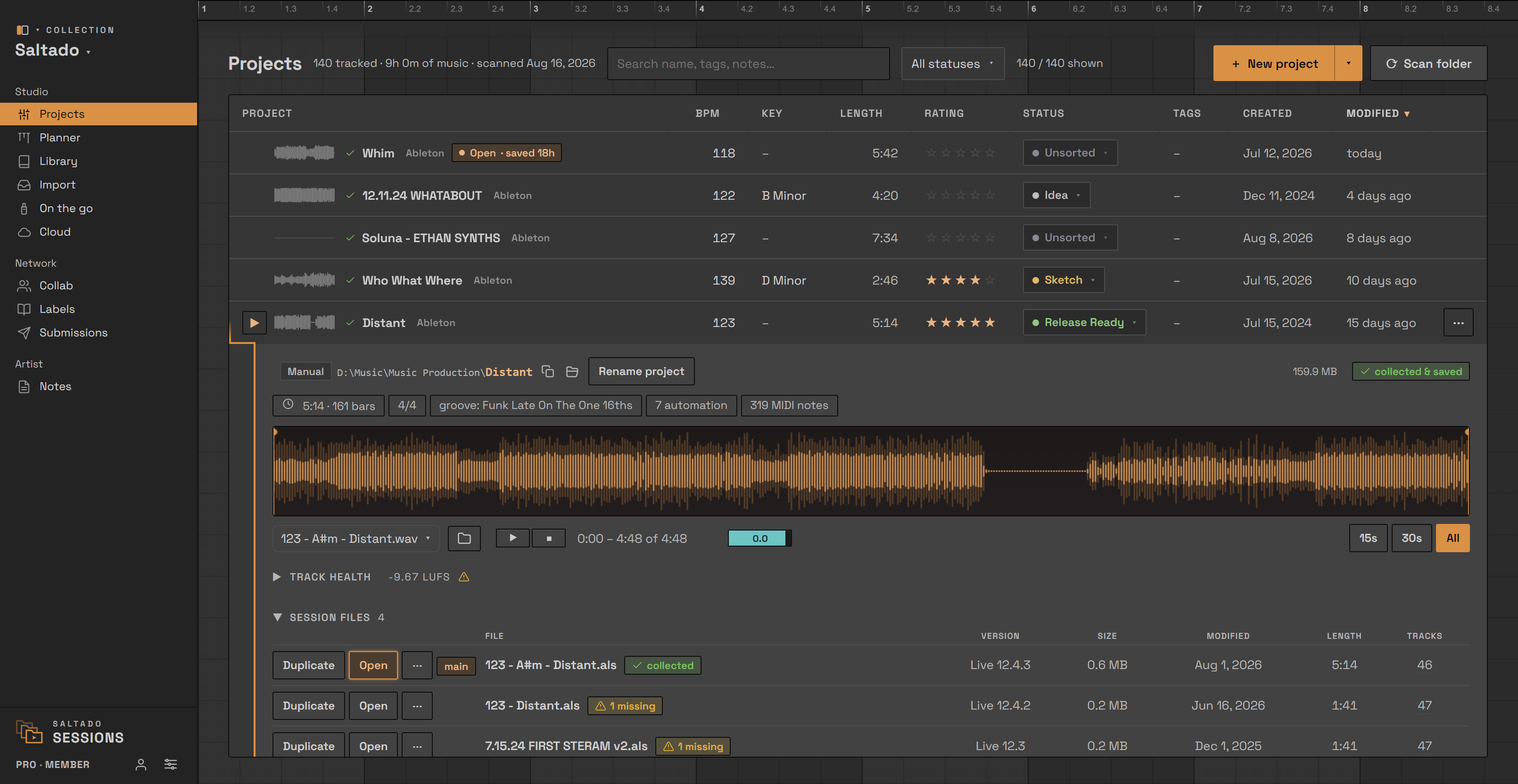
Saltado Sessions scans your projects folder and reads them without opening your DAW. Three parts of it are the automation of this page, and all three are free:
- Collect status on every project. Each project shows whether every file it uses lives inside the project folder, how many live outside it, and how many are gone. That is the difference between "opens fine on my machine" and "safe to send", and it is not a distinction Live shows you anywhere. It covers samples, Max for Live devices and video, and it counts Live's own factory content separately, since that is not something you need to collect for a user who has Live.
- The Compatibility Checker. Point it at a set and it lists every plugin and device the project references and compares that against what is installed here, so you get "missing 3 of 12" with the names, plus the BPM, the key and the version of Live that wrote the file. Run it on a set you are about to send, and the list of tracks to bounce is just the ones they will be missing.
- Plugin Passport. Export this machine's installed-plugin inventory as one small file, swap it with a collaborator, and see what you both have, what only they have, and what only you have. That is the conversation to have before you start a track together, not after the zip lands. It is DAW-agnostic, because it inventories plugins rather than reading a project file.
There is one thing it deliberately does not do: it does not convert or downgrade a set. It reads and reports the Live version that wrote the file. Nothing outside Ableton can turn a Live 12 project into a Live 11 one, and any tool that says otherwise is guessing with your song.
What is free and what is Pro
- Free: the drive scan and library for unlimited projects, the collect status on every project, the Compatibility Checker, Plugin Passport, BPM and key, search, sort, ratings, statuses and the label book.
- Pro ($34, one time): bounce playback, the full sample and plugin library, starting a new project from your own template, the drop-to-organize importer, the un-tangler, the duplicate-sample finder and demo-submission tracking. Never a subscription. Opening your DAW from the app, and On the go, are both free.
Everything is local. No account, nothing about your music leaves the machine, and reading your projects is read-only. Sessions Cloud, the optional off-machine backup the pull above runs through, is a separate subscription.
Know what is in the zip before you send it. Sessions reads every project on your drive without opening Live, and tells you which ones are collected, which ones are missing files, and which plugins the person on the other end will not have.