Projects
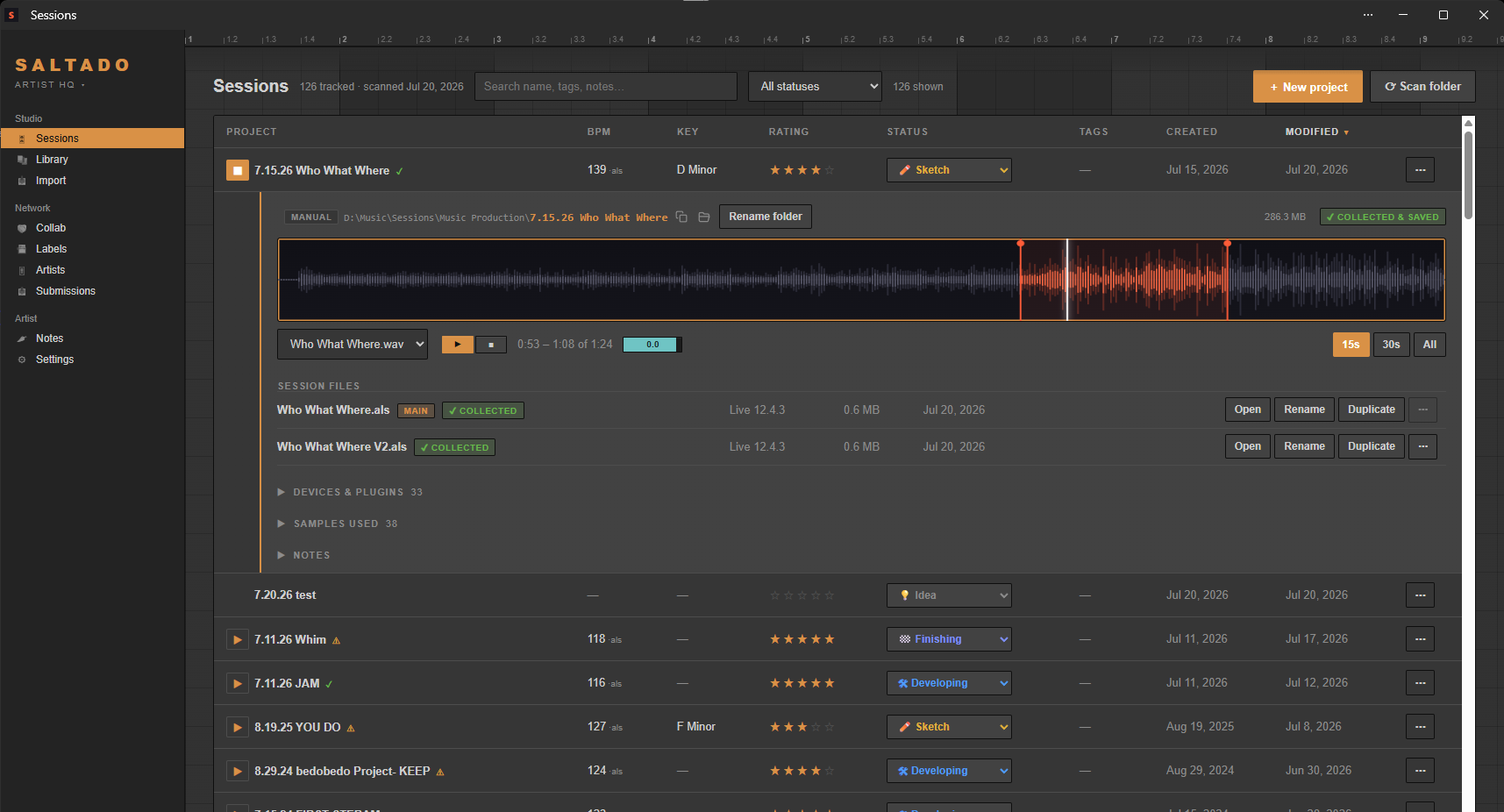
One library for every DAW you use. An Ableton project
manager that is not only for Ableton: Sessions scans your whole computer, finds every
project you have ever made across all ten supported DAWs, and reads the BPM
straight out of the file where the format stores one. Ableton is read the deepest,
including the key and what is inside the set, so your catalog is organized and searchable
without tagging a thing. It is the file management you keep meaning to do, done once and
then kept up to date, and the
by-hand way to organize Ableton projects is
written up if you would rather do it yourself.
- Scans your computer for every project, across all ten DAWs
- Tempo where the format stores it (Ableton, FL Studio, Logic, REAPER, Studio One); key
from Ableton sets and Logic. The other five are found, grouped and opened like any
other, and their numbers are left blank rather than guessed
- Ratings, statuses, tags and notes
- Customizable status pipeline, idea to released
- Find any project again: search, sort and filter your whole catalog
- Two ways to look at the library: the table, or a grid of cover art
- Cover artwork: drop an image in a project folder and Sessions finds it, or
pick one from the row menu, and a rescan never overwrites your choice
- Until a project has artwork its card draws the track's own waveform in your
accent colour, with the BPM, key and length across the foot of the picture
- Column chooser: hide the columns you never read
- Set vitals from Ableton sets: true length, bars, time signature, markers
- Arrangement view: see a set's clips, colors and MIDI without opening Live
- Track counts and file details per set, with the version of Live, Bitwig or Cubase that
wrote it where the file records one
- Works with sets saved by any version of Live
- What Ableton had open recently, on a card inside Sessions, read straight from
Live's own preferences
- Drag projects and samples straight into other applications
- Manual edits always survive rescans
How to find old Ableton projects, by BPM or key →
Previews Pro
Hear a track without opening Ableton. Sessions matches your exported bounces
back to their projects, so you can preview any finished idea from a waveform right inside
the app.
- Bounces found where you actually keep them: your exports folder, and
anywhere under the project folder itself, three levels down, so Bounces,
Renders, Masters and the rest are all read
- Teach it your own folder names in Settings, and a name you type wins over
every list the app ships with
- Stems and takes folders are listed but never picked automatically, so a loose
vocal take can't quietly become what a project plays
- A bounce you chose by hand is remembered, and stays on the list even after it
moves
- Play any track without opening the DAW
- Waveform with a draggable preview window
- Level-matched playback, matched by loudness rather than by peaks, and per-track volume
- Preview samples used inside a project
Hear any project without opening your DAW →
Track health Pro
How loud your master
really is, and what streaming will do about
it. Sessions measures each bounce in LUFS, the same loudness
measure Spotify, YouTube and Apple Music normalize to, and then tells you the consequence
in a sentence instead of handing you a number to go and look up. Platform targets are
approximate and written as guidance, never a pass-or-fail badge: how loud the track should
be is still your call.
- Integrated loudness, loudness range and true peak, per bounce
- Said as a consequence: roughly how much Spotify will turn this track down, or up
- A true peak over full scale is called out; the tighter mastering ceiling is noted and
left alone, because most well-made masters sit above it
- The loudness curve drawn along the waveform in its own lane, with the moments that
clipped marked
- A live metering console riding the waveform while a preview plays, in three
views: hidden, a simple glance, or the whole console, cycled from the transport
- Momentary, short-term and gated integrated loudness, the integrated
reading carrying its signed distance from the -14 reference
- Live true peak, with a clip lamp per channel that stays lit once it fires
- PSR, and left and right level bars with peak-hold ticks
- Stereo correlation full band, and again below 120 Hz, because a mix can be
mono-safe up top and out of phase where the bass lives
- A goniometer with trails, and 30 seconds of momentary history under it
- Every part switchable on its own, so the console shows only what you read
- Read from WAV bounces; other formats are named as unmeasured rather than guessed at
- Level matching changes only what you hear, never the file: the measurements are taken
from the bounce on disk either way
Session files
Manage the files inside every project folder without leaving the app: open a
set in its DAW, duplicate or rename it, spot samples that were never collected, and start
a new project by launching your DAW straight from the app. The samples a set uses are
listed too, and the ones
that came out of your Splice library are named with the pack they came from and link
straight back to it, which still works after Collect All and Save has copied and renamed
them into the project folder. Sessions finds them; the licence certificate itself is
Splice's own flow on their site, and there is no bulk export of it.
- Open a session in its DAW from the app
- Duplicate, rename, delete (to the Recycle Bin)
- Pick which set counts as the main one
- Collect-and-save check: spot missing samples (Ableton sets)
- Every sample a set uses, listed Pro
- "Find on Splice" on the ones from your Splice library, named with their pack
Pro
- No Splice on this computer just means no Splice links, never an error
- Rename the project folder safely
- "+ New project" launches your main DAW blank, and the arrow beside it lists
every DAW you have installed
- Or start from a template: it stamps out a copy of any project you have parked
in the Templates collection Pro
While Live is open
Sessions watches Ableton Live while you work. The set you have open is
marked in the list with a running save clock, the app refuses to rename or
delete a set out from under Live, and it can remind you when one has gone too long without
a save.
- Open sets marked in the list, with the time since the last save
- Unsaved changes and never-saved sets called out
- Rename and delete refused on a set that is open in Live
- Save in Live and the project re-reads itself: BPM, key, length and the rest of
its vitals catch up on their own
- Studio time per project, banked per day. It counts only while Sessions is
running, so it is a record of the time the app was there for, not a complete one
- Save reminder: a system notification and a taskbar flash, never a popup over your
session and never a sound
- Off until you turn it on, with your own threshold from 5 to 60 minutes
- If your system refuses the notification it says so, with advice for that system
- Ableton Live only; on macOS it needs the one-time Accessibility permission
Clean up your library
Sessions walks you through fixing a messy library. Spot projects with
missing samples, the ones Live reports as missing files, across your whole
catalog (free, Ableton sets), then, with Pro, split a
folder where every song was saved together into one folder per song, reclaim disk from
duplicate samples by deleting only the unused copies (it never removes one
a project actually uses), and drop new packs in to be filed automatically. Every move goes
to the Recycle Bin and can be undone. There are longer walkthroughs of
finding missing samples in Ableton and of
organizing Ableton projects if you would
rather understand it before you run it.
- Missing-sample check across your whole catalog
- Detangle: one folder where every song was saved together becomes one project
folder per song Pro
- It copies the samples across too, so each song comes out as a folder that opens
on its own. Nothing is ever deleted from the original, which ends the run holding
every file it started with
- One at a time if you would rather: open a song in Ableton first, detangle just
that folder, listen to it, undo that one on its own, and stop whenever you like
- A folder holding a song Live had open in the last month is flagged before you
detangle it, so you never split a project out from under work in progress, and
afterwards it points you at Live's own Remove Unavailable Sets
- "See why" on any pile: which songs it holds, which session files belong to each,
and what the grouping was read from
- Finding the piles is free, and so is marking one as intentional, which sticks
even if you rename the folder
- Duplicate-sample finder, project-aware and safe Pro
- Drop-to-organize: packs, devices and sets auto-filed Pro
- Every change journaled and reversible
How to clean up your projects and samples →
Library Pro
Catalog your whole studio: samples, racks, presets, Max for Live devices and
plugins, with vendor names and a running count of how many tracks each plugin is actually
used in.
- Samples, racks, presets, Max for Live, plugins
- MIDI and clips too: .mid, .midi and Live's .alc
- Presets saved from inside the plugin's own menu, not only the ones the host
files: FabFilter, Valhalla, Serum, Vital, u-he, Native Instruments and more,
over 20 formats
- Mine, Factory, Packs or Other: filter by where something came from
- What kind of thing each plugin is, synth, EQ, compressor and so on, read from a
489-plugin research catalog
- Copy list: your whole plugin inventory as clean text, ready to paste into an AI
chat or a forum post
- Plugin vendors and your own categories
- "Used in N tracks" for every plugin
- Folder browser and flat searchable list
- Duplicate-sample finder, matched by content
- Sample preview straight from the list
Labels & submissions
Where looking for labels accepting demos starts. Instead of
the record label contact list you would otherwise build by hand, more than
1,200 labels and outlets arrive with the app, tagged by genre, each with
the story of who runs it and what it releases. Labels that charge to
consider a demo are flagged on the free tier too, because a pay-to-play warning is worth
nothing to the person who already paid. Whether a given label has its inbox open this month
is research you keep in the app, never a promise it makes. The directory is
free; known demo routes and submission tracking are Pro:
log every send and follow each track from first send to signed.
- 1,200+ labels and outlets built in, tagged by genre
- The story behind each one: who started it, where, and what changed
- Pay-to-play submission fees flagged, on the free tier
- Labels and outlets kept apart, so a magazine isn't pitched like an imprint
- The label book stays yours: add your own labels, contacts and research notes
alongside them
- Known demo routes unlocked on 130+ of them Pro
- One-click send that logs itself Pro
- Tracker: sent / no reply / rejected / accepted / released Pro
- Stale sends flagged after 30 days, reply times tracked Pro
- The submissions desk, two panes: every send for a track on one side, the label
you are working on the other Pro
- A shortlist of the labels you mean to try, with ranked suggestions drawn from
your own book Pro
- A shortlisted label graduates by itself the moment you actually send
Pro
How to submit a demo to a record label →
Sharing a project
Before you send an Ableton project to
someone, or open the one they sent you,
know it will actually open. The Compatibility Checker reads which plugins a set needs and
names the missing plugins exactly, and Plugin Passport is a plugin list
you can export and hand over, so two producers can compare whole collections before either
of them wastes an afternoon.
- Compatibility Checker: will it open?
- Exactly which plugins you're missing, before you open
- Plugin Passport: export your plugin list and swap it with a collaborator
- Both have / only them / only you, at a glance
Will this Ableton project open? →
Friends & collab
The producers you work with, inside the app. Add them with a friend code
or a username, see who is in the studio if they let you, and compare plugin collections
without swapping a file. Friends is free for everyone: the people you
work with do not need to have bought anything. Staging a project for a collab and
sending a listen link both need the Vault underneath them, so those two ride the
A&R + Vault subscription.
- A friend code and a username of your own: add someone with either, they accept,
and you are connected
- A profile with a picture, framed by dragging and zooming the way cover art is
- Open a friend's profile for how long you have been friends, the collabs you share,
their studio numbers and their plugin list, with the overlap against your own machine
worked out for you
- Three switches, each off until you turn it on: whether friends see you are in the
app or in a DAW, whether they see your plugin list, and whether they see your studio
numbers. Turning one off ends it there and then
- The Collab Queue: stage a backed-up project, attach a friend, and you both see it
listed with its artwork, BPM, key, length and status. Part of the A&R + Vault
subscription
- A listen link on any project: a page that plays the bounce in a browser, and the
notes your friend leaves come back into the app. Part of the A&R + Vault
subscription
Import Pro
Drop a sample pack, a Max for Live device or a Live set on the Import page and
Sessions files and catalogs it automatically. You decide where each kind of thing lands, and
every run is listed afterwards and can be put back.
- Drop zips, packs, devices, presets or projects
- Everything filed and cataloged automatically
- "Where things go": pick the destination folder for each kind
- Anything you leave alone follows the library if you move it
- Import history: what each run filed, and where
- Undo any run whose files are still in place, not only the last one
- File history of everything the app has done
Planner
A kanban board over your own status pipeline, so the tracks you are actually
working on have somewhere to live. Cards move between your statuses, and a board is opt-in
per project, so it stays a short list rather than your whole library.
- Columns come from your own status pipeline
- Drag a card to change a project's status
- Opt in per project, so the board stays a short list
- Hide the columns you aren't working in
- Click a card to jump to the full project
Releases
Group finished tracks into singles, EPs and albums, so a
body of work is something the app knows about rather than a folder name you have to
remember. Reading a release is free and stays free: building and editing one is Pro,
and a licence that lapses leaves every release you made still readable.
- Singles, EPs and albums, with the tracklist in the order you want it
- Total running time, added up from the tracks themselves
- Readiness at a glance, read from your own status pipeline
- A song can sit on a single and on the album at the same time
- Build and edit releases Pro
- Every release stays readable whatever your license says
Collections
Keep a separate collection for each of your artist aliases or projects inside
one library, and move projects between them freely without ever touching the files on disk.
Three collections free, unlimited with Pro.
- Up to 3 collections free, unlimited with Pro
- Move projects between collections, files never move
- Archive collection for parking old work
- Existing collections stay readable whatever your license says
Notes
A notebook inside the app for everything that lives around the music: your
brand, how you want a release to go, what you learned about a label. Kept per collection or
shared across all of them.
- Notes per collection, or visible to every collection
- Simple formatting: headings, lists, tables and code
- Stored in your library and included in backups
Your account
Sessions works with no account at all, and that is not
changing. An account is there for the things an account is genuinely good at: finding
your license again, freeing up a machine you no longer use, and carrying your Pro onto
a computer that isn't yours. None of it costs anything.
- Sign in with Google without ever leaving the app
- Or sign in by scanning a code, choosing how long the visit lasts
- Two-factor if you want it: an authenticator app, an emailed code or a text, with
recovery codes to print
- See every machine and browser you are signed in on, and sign any of them out
- Free up a machine you no longer use, yourself, instead of emailing us
- Roaming: sign in on a computer that isn't licensed and your Pro is on for as long
as that visit lasts, with no activation spent on it
- "Keep me signed in on this computer", so a sign-in survives a restart until you
sign out or revoke it
- The A&R + Vault subscription roams the same way: sign in on any computer and
label research works there
Setup & settings
The first run asks two questions, where your projects are and where your
bounces land, then walks itself into the results. It is read-only:
setting up moves and renames nothing on your disk, and the only thing it writes is the
optional backup at the end. On a computer with no projects on it yet, Sessions can
make you a projects folder, or you pick one with a real folder dialog
instead of pasting a path.
- Six languages: English, Spanish, German, French, Brazilian Portuguese, Japanese,
switched any time in Settings
- Text size setting that draws the whole interface larger, in Settings beside the
language and theme choices
- Choose which sections of a project's detail panel you see
- A setup ring in the sidebar tracking four studio jobs, each row jumping straight
to the setting that fixes it, and a first-run tour you can replay any time
- Rename, reorder and recolor your own status pipeline
- Windows installer asks where to install, in six languages, and about shortcuts
- Uninstalling asks whether to keep your library, and keeping it is the default
- Your projects and audio on disk are never touched either way
- Language, text size and the rest of your settings travel with a backup
General
Sessions runs entirely on your computer, with no account and nothing
about your music leaving it unless you turn on the Vault. It’s free for unlimited projects on Windows and macOS, with a one-time Pro upgrade.
- Local-first: no account, and nothing leaves your machine on its own
- Windows and macOS
- Six studio themes, plus one of your own: pick a background, a text colour and
an accent, and every other colour is worked out from those three so nothing lands
unreadable
- Type a hex code straight in, and save a palette under a name to come back to
- A look per collection, so you can tell at a glance which one you are in
- Jump to any project or page with Ctrl+K
- Local backup and restore, plus a "back up
my work" run that copies the
irreplaceable files with a plain-language manifest
- On the go: copy your library onto a USB stick and take it to another studio, or take
just the songs you name instead of the whole library, and a second trip only copies what
changed since the first. Merging what you changed elsewhere back into the original
folders is the half still being built
- The same stick can carry the Windows and Mac installers, so the studio you are
visiting can install Sessions from the drive, and your DAW's own backup folders ride
along with the copy
- A help door in the app that answers from the product's own documentation, and
points you at a real person when that is what you need. The same assistant is on
this site, with a message tab that reaches support
- A diagnostic report you can read before you email it, if something breaks
- Unlimited projects free; Pro adds the power tools
- One-time purchase, never a subscription